


 Author:


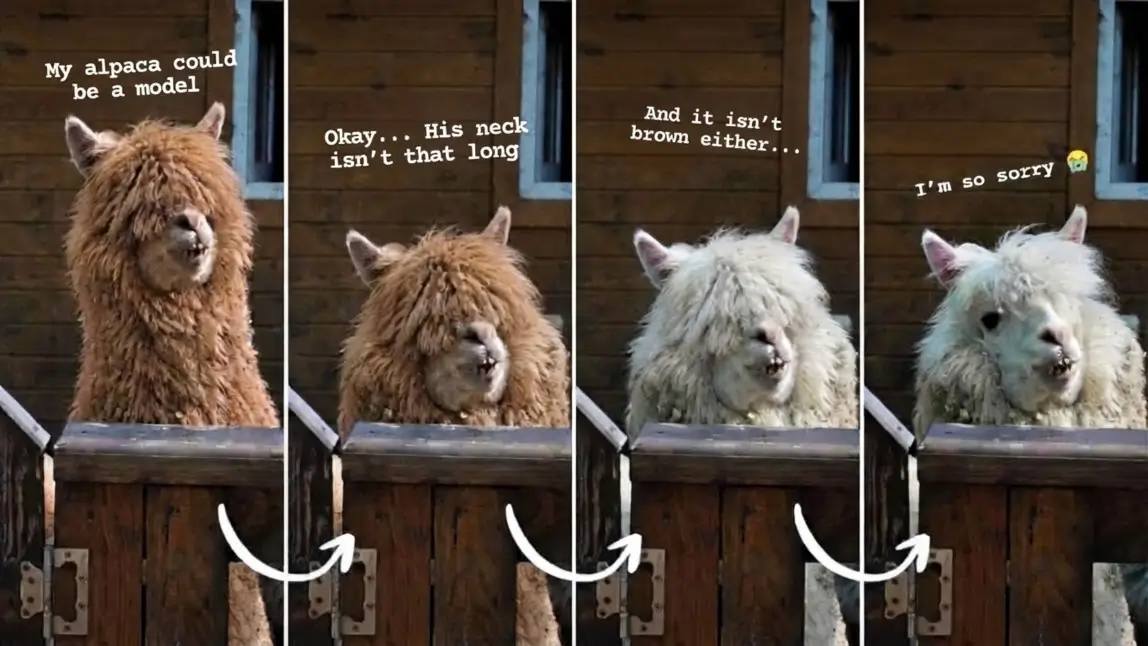
With the “I'm so sorry” trend, you first show the perfect AI image, followed by little confessions, and end with the real photo. The punchline lands because each slide brings back a little piece of truth. You can recreate the trend without extensive photo editing: in your browser with the AI Image Generator in the YouCam Online Editor or on your smartphone with YouCam AI Pro. An alpaca joins us as an example.
What Is the “I'm so sorry” Trend?
The trend is a slideshow of four images. The first image looks flawless, while each following one appears as though an edit is being undone. The final slide shows the unedited original, along with the exaggerated apology: “I'm so sorry.” The humor comes from the contrast between the perfect opening and charming reality.
Important to understand: The images are created and published in a different order. You create all images based on the unedited original. However, they are published in reverse: the most enhanced version comes first, and the original comes last. This is not about technically removing filters or restoring hidden original data. The slideshow only makes it seem that way.
Images You Need
For the slideshow, you need four images: three AI variations and the original. In this example, the original is a white alpaca with tousled fur behind a wooden gate in front of a rustic stable wall. One eye is visible, its mouth is slightly open, and its uneven teeth can be seen. In the upper right, there is a dark window opening with a blue-painted frame.
Here is what the four slides look like in publishing order:
| Slide | Appearance | Example of the on-screen text |
|---|---|---|

Slide 1
| Cute brown alpaca, mouth closed, full fur bangs cover both eyes, slightly larger and with a slightly longer neck than in the original | “My alpaca could be a model.” |

Slide 2
| The same brown alpaca with fur bangs and a closed mouth, but in its original size and with its original neck length | “Okay, I lied. Its neck isn't that long.” |

Slide 3
| Cute alpaca with white fur like the original, both eyes under the fur bangs, mouth closed, size and neck like the original | “And it isn't brown either.” |

Slide 4
| The unedited original photo: tousled fur, one visible eye, uneven teeth | “I'm so sorry.” |
The texts are suggestions. Adapt them to your own photo and sense of humor. By the way, the real alpaca is the charming punchline, not a reason to put down an animal or a person. Good versions of this trend work with affection.
How to Create the “I'm so sorry” Trend With the YouCam Online Editor
The YouCam Online Editor runs in your browser, so you do not need to install anything. The exact labels in the interface may change. These steps therefore describe the process and only mention terms that appear on the AI Image Generator page.
- Open the YouCam Online Editor and access the AI Image Generator.
- Upload your original photo as a reference image. The generator lets you use your own image as a template.
- Start with the subtle version for Slide 3: Enter the prompt for the white alpaca with fringe (see below), start generating, and save the result.
- Then create Slide 2 with brown fur, again using the original photo as a reference, and save it.
- Finally, create Slide 1 with brown fur and a slightly longer neck, and save this image as well.
- Fully describe all desired features for each variation. The prompt should not assume that the generator remembers anything from the previous round.
- Check each result for unwanted changes to the background, gate, window frame, and the animal's position.
- Keep the original photo unchanged for the final slide.
As a general rule, each variation is created from the same original as a reference, and the prompt includes all desired changes. You can also use a successful result as the next template. However, small unwanted changes may then accumulate from round to round.
Guide: “I'm so sorry” trend with YouCam AI Pro

YouCam AI Pro is the app for iOS and Android. Here, too, you work with the image-to-image feature, a reference photo, and a text prompt.
- Open YouCam AI Pro and select the image-to-image feature.
- Upload your original photo as a reference.
- Paste in the prompt for Slide 3, start generating, and save the image.
- Repeat the process using the original photo as a reference for Slide 2 (brown fur), and save the result.
- Create Slide 1 in the same way (brown fur, slightly larger, slightly longer neck) and save it.
- Compare all three images with the original. If the background or lighting differs, generate again or make the prompt more specific.
You can find the prompts in the next section. Use the same three texts as in the browser. If the app offers multiple models, try to stick with one for all three variations. Find more background on image-to-image and prompts in our AI image generator review.
Three ready-to-copy alpaca prompts
Each prompt is understandable on its own. Simply copy it into the prompt field after uploading your original photo. You do not need a prompt for Slide 4, because the original remains unchanged there.
Prompt for Slide 3: white alpaca
Use the uploaded photo as a reference and change only the alpaca. The alpaca has white fur, looks cute, and remains clearly recognizable. Full, natural, thick fringe completely covers both eyes. The mouth is closed, with no teeth visible. Photorealistic result, not a cartoon. Keep the background, stable wall, blue-painted window frame, wooden gate, metal hinge, camera perspective, image format, and lighting as unchanged as possible. Keep the animal's position, body size, and neck length the same as in the original. No text, no additional animals, no new objects.
Prompt for Slide 2: brown fur
Use the uploaded photo as a reference and change only the alpaca. The alpaca has brown fur, looks cute, and remains clearly recognizable. Full, natural, thick fringe completely covers both eyes. The mouth is closed, with no teeth visible. Photorealistic result, not a cartoon. Keep the background, stable wall, blue-painted window frame, wooden gate, metal hinge, camera perspective, image format, and lighting as unchanged as possible. Keep the animal's position, body size, and neck length the same as in the original. No text, no additional animals, no new objects.
Prompt for Slide 1: brown, larger, longer neck
Use the uploaded photo as a reference and change only the alpaca. The alpaca has brown fur, looks cute, and remains clearly recognizable. It is slightly larger than in the original and has a slightly longer neck. Full, natural, thick fringe completely covers both eyes. The mouth is closed, with no teeth visible. Photorealistic result, not a cartoon. Keep the background, stable wall, blue-painted window frame, wooden gate, metal hinge, camera perspective, image format, and lighting as unchanged as possible. Keep the animal's position the same; only body height and neck length may be changed slightly. No text, no additional animals, no new objects.
For other photos, adjust the animal, colors, and surroundings. Always specify exactly what should remain the same. Vague requests such as “make everything prettier” lead to unpredictable results. Find more ideas for precise prompts in our article on prompts for ChatGPT Images 2.0.
Publish Images as a Slideshow
YouCam products do not automatically create the finished slideshow or publish it directly. You put it together on the platform of your choice, such as TikTok or Instagram.
- Arrange the saved images in the order 1, 2, 3, and finally the original.
- Use consistent framing and the same aspect ratio for all four images.
- Add the short confessions as text when putting together the post. Do not have the image generator create them.
- Choose a suitable, available sound on the platform.
- Use “I'm so sorry” on the final slide for the punchline.
Tips for Consistent Results
- Use the same reference photo for all variations.
- Stick with the same AI model whenever possible.
- Explicitly mention the features that should remain the same in the prompt.
- Regenerate unsuitable results or refine the prompt as needed.
- Compare the background and lighting before saving an image.
A prompt can request an identical background, but it cannot guarantee a pixel-perfect match. Small variations are part of AI-generated images. Choosing a model in advance can often save you several attempts. Our comparison Gemini 3, Nano Banana Pro, and Alternatives provides an overview of current models.
Which Tool Is Right for You?
The YouCam Online Editor is ideal if you work on a computer and do not want to install anything. According to the site, you can try the editor without signing up, and receive free credits when you first sign in. YouCam AI Pro is a good fit if you already post from your smartphone and want to create images directly there. Use may require payment depending on the feature, model, and plan.
Try the Trend With Your Own Photo
Choose a photo you love and use the three prompts to make it “perfect” step by step. With YouCam AI Pro, you have the image-to-image feature right on your smartphone.
Frequently Asked Questions About the “I'm so sorry” Trend
What Is the “I'm so sorry” Trend?
A slideshow of four images: It starts with a heavily beautified image, with each slide bringing back a little more reality, and ends with the unedited original and the apology “I'm so sorry.”
Can I Do the Trend With a Pet Photo?
Yes, the alpaca in this article proves it. Keep the humor affectionate: the real animal is the charming punchline, not something to put down.
How Many Images Do I Need?
Four: three AI variations and the unedited original photo as the final slide.
Can I Create the Trend Without an App?
Yes. The AI image generator in the YouCam Online Editor runs in your browser. You can then assemble the finished slideshow on the platform where you want to publish it.
How Can I Keep the Background as Consistent as Possible?
Always use the same reference photo and explicitly mention the background, perspective, and lighting in the prompt. A pixel-perfect match cannot be guaranteed, so it is worth comparing the images before saving.