


 Author: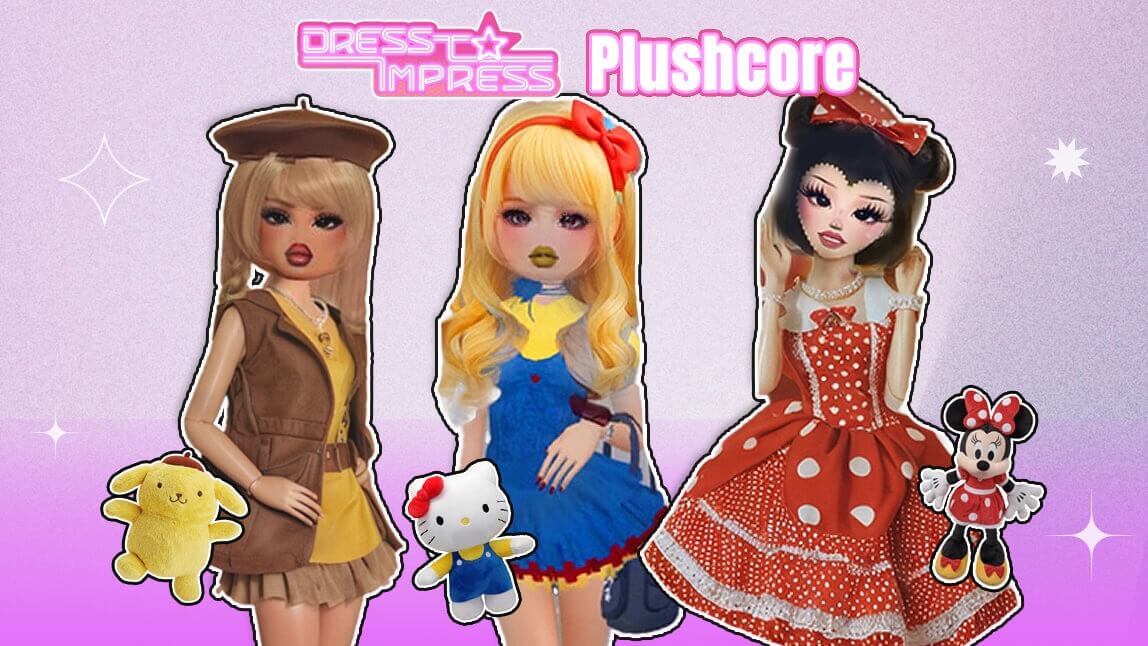
Are you ready to "slay" the runway with the softest aesthetic of the year? Whether you're exploring the new Lana’s Apartment update or competing in a high-stakes fashion show, Plushcore is the viral trend you need to master.
We're about to dive deep into how you can transform your DTI creations into the ultimate Plushcore dreams, all with a little help from the amazing YouCam AI Pro app. Get ready to level up your Roblox style!
What’s Plushcore?
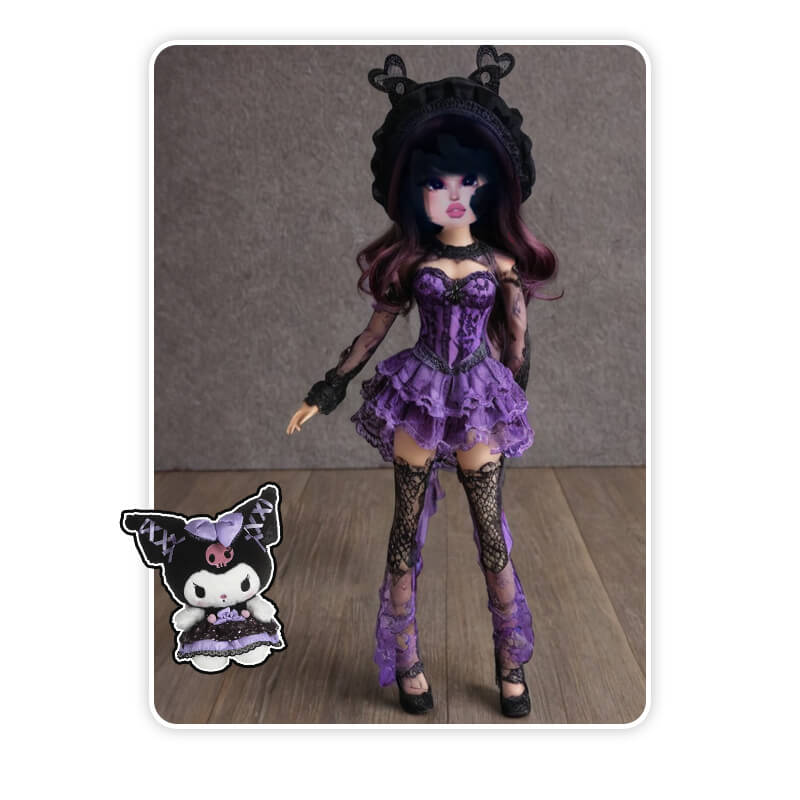
Imagine wrapping yourself in a cloud of cuddly toys, pastel colors, and all things irresistibly soft. That's Plushcore! It's an aesthetic deeply rooted in comfort, cuteness, and a childlike wonder.
What is Plushcore in Dress To Impress (DTI)?
Plushcore is a fashion "core" centered on comfort, cuteness, and childlike wonder. In 2026, the trend has evolved beyond simple pastels to include hyper-realistic fuzzy textures and interactive 3D accessories. It’s about creating an avatar that looks like it was plucked straight from a luxury toy store.
The 2026 Plushcore Toolkit: Latest DTI Updates
As of the March 2026 Spring Update, the DTI developers have released several items that are essential for the Plushcore look:
- The Bear Onesie & Ears: Unlocked via the active code CA11MEHHALEY.
- The "Carrie" Weekly Boutique Set: Perfect for layering soft fabrics.
- Lana’s Secret Items: Hidden in the new apartment map, these include rare soft-glam makeup presets that complement the Plushcore vibe.
Plushcore DTI: How to Make DTI Plushcore Outfits in Roblox
Ready to infuse your DTI wardrobe with some serious Plushcore charm? Here’s your step-by-step guide to crafting those perfectly soft and adorable outfits using the power of AI!
Step 1: Download the Best AI Plushcore Filter App: YouCam AI Pro
Shared Materials by Strapi
*Adjust the size of images ONLY. Please go to Strapi to edit the materials info.
First things first, you need the right tool for the job! To truly capture that Plushcore essence and generate incredible visuals for your DTI outfits, you'll want to download YouCam AI Pro. Ready to start? Download YouCam AI Pro now and get a head start on your Plushcore journey!
Step 2. Write a Prompt for Your Plushcore DTI
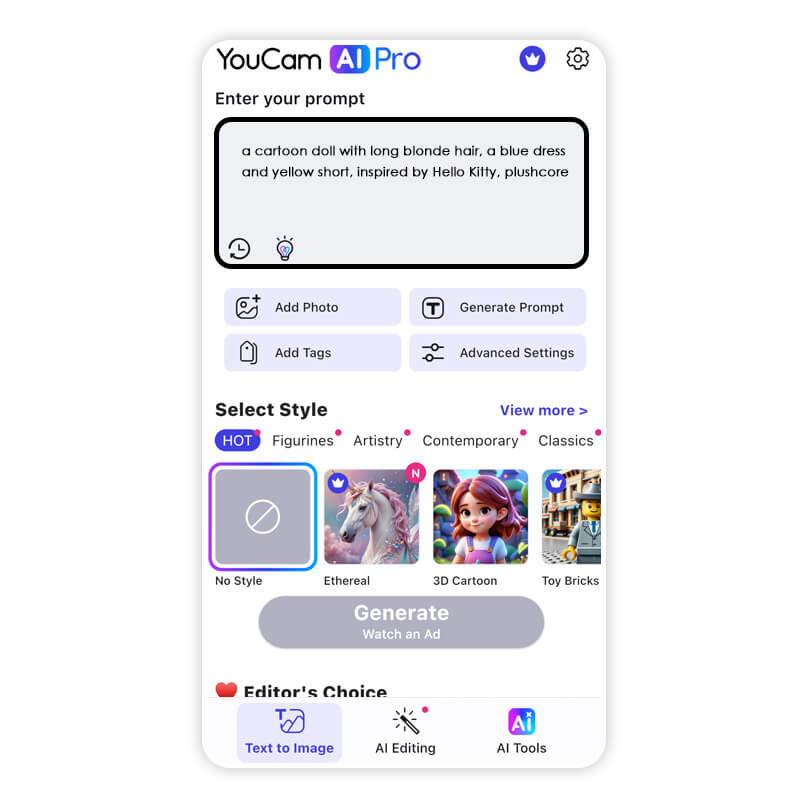
Once you have YouCam AI Pro, it's time to unleash your imagination! Think about what elements define your ideal Plushcore DTI outfit. Do you want pastel colors? Fuzzy textures? Cute animal ears? Be descriptive in your prompt.
Example Prompts:
"A cartoon doll with long blonde hair and a blue dress, inspired by Hello Kitty, Roblox avatar Sandrio, Disney."
Step 3: Add Brick Toy Style for Your Plushcore DTI
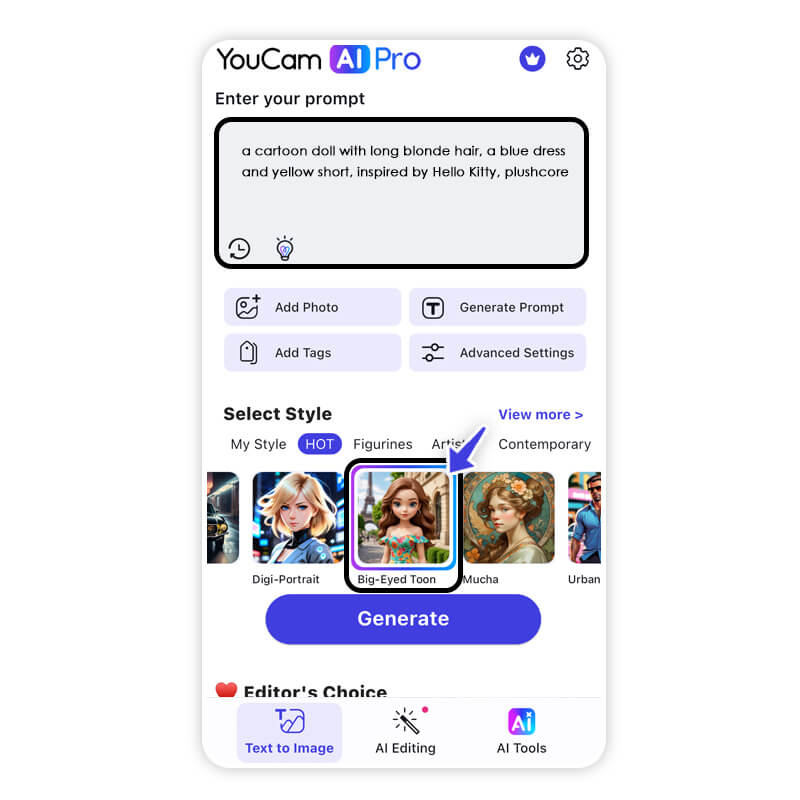
This is where the magic really happens for your Roblox DTI creations! Within YouCam AI Pro, look for the "Brick Toy" style or a similar aesthetic option. Applying this filter will give your generated image that distinct, blocky, yet charming look that perfectly mimics the Roblox aesthetic. It’s the secret ingredient to making your Plushcore visions fit seamlessly into the Roblox world!
Step 4: Tap "Generate" to Get Your Plushcore DTI
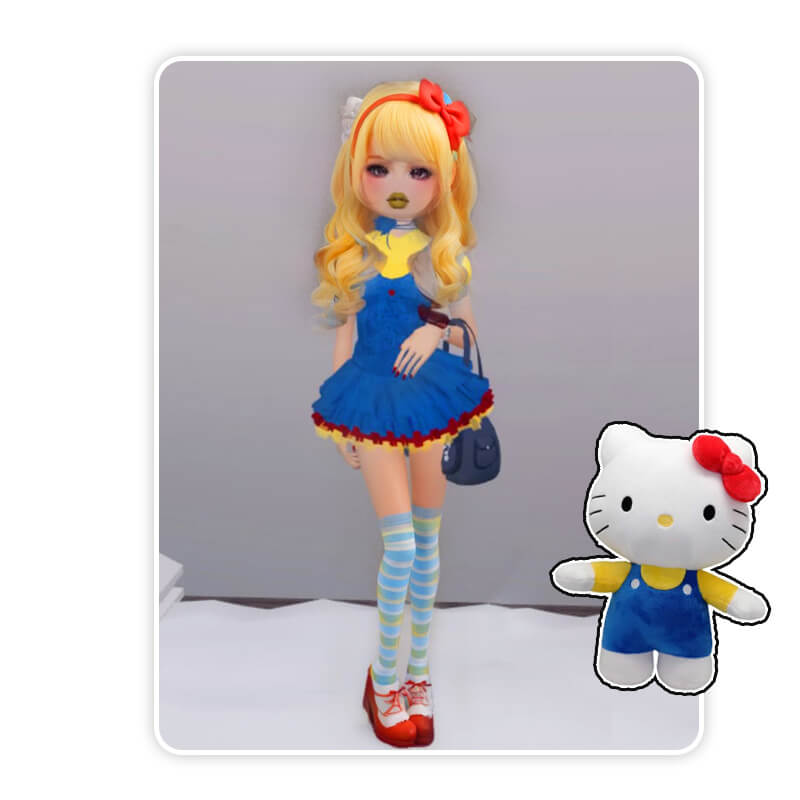
With your prompt ready and "LegoStyle" selected, simply hit "Generate"! Watch as YouCam AI Pro transforms your words into a stunning Plushcore DTI outfit concept. You can experiment with different prompts and styles until you get the perfect look you're aiming for.
Bonus Tip: Turn Your Plushcore DTI Photos into Videos
Why stop at just photos? Take your Plushcore DTI creations to the next level by turning them into dynamic videos! YouCam AI Pro makes this incredibly easy.
Step 1. Head to Image to Video
Within YouCam AI Pro, navigate to the "Image to Video" feature. This is where you'll bring your static images to life.
Step 2. Upload Your Plushcore DTI Photo
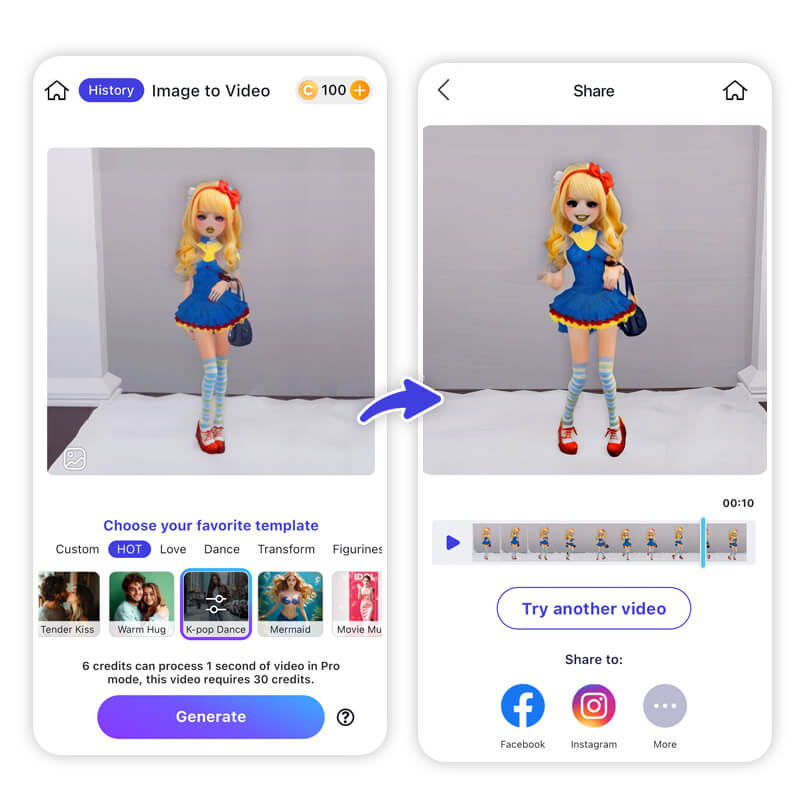
Select the amazing Plushcore DTI photo you just generated in the previous steps.
Step 3. Select Video Template or Write Your Own
YouCam AI Pro offers various video templates to give your image movement and flair. Or, if you're feeling extra creative, you can even write a prompt to describe the kind of video animation you want for your Plushcore DTI.
Step 4. Generate & Save Your Plushcore DTI Video
Tap "Generate" and watch your Plushcore DTI photo transform into a captivating video! Once it's ready, save it and share your adorable creations with your friends on social media or in your Roblox community.
Design Your Plushcore DTI Images & Videos with AI
Shared Materials by Strapi
*Adjust the size of images ONLY. Please go to Strapi to edit the materials info.
Ready to unlock endless Plushcore possibilities for your Roblox DTI game? Don't wait! Download YouCam AI Pro today and start creating the most charming, squishy, and utterly adorable Plushcore outfits you can imagine!
About the Editors
The PERFECT Corp. Editorial Team
We are a team of experts on photo and video editing apps. Our goal is to deliver engaging content on everything from stunning selfie edits to eye-catching video effects. We cover the latest trends and share niche tips to help you master digital creation.
Plushcore DTI FAQs
"Dress to Impress" is a registered trademark of PHATMOJO, LLC Inc. Neither "Dress to Impress" nor "PHATMOJO, LLC Inc." is in any way associated with Perfect Corp.
What is the best code for Plushcore items in March 2026?

The code CA11MEHHALEY is the gold standard, providing a teddy dress, bear ears, and a onesie.
Is "Pishcore" a real trend?
"Pishcore" is a common misspelling of Plushcore. If you see users talking about "Pishcore" in the DTI chat, they are referring to the same soft, fuzzy, and pastel aesthetic.
How do I get better textures in DTI?
Use the "Materials+" Gamepass in Roblox to apply fuzzy or knit patterns to your clothes. For planning, use YouCam AI Pro's Generative AI to visualize how different textures will look together.



 English


