


 Author:
 ![How to Post Multiple Photos on Instagram [Step-by-Step Guide]](https://plugins-media.makeupar.com/smb/blog/post/2025-11-06/webp_92d759ab-0701-40b5-bc4c-b3326af948fc.jpg)
Still stressing over picking just one perfect photo for Instagram? You don’t have to. Whether it’s a trip, daily moments, or products, posting multiple photos (carousel posts) lets you tell a fuller, more engaging story. This guide shows you how to easily post multiple photos on Instagram—even if you’re a beginner. Plus, learn a pro tip to go beyond the usual limits using YouCam Perfect and take your IG content to the next level.

Why Carousels Win: Boosting Engagement and Visibility
You might be wondering, "Why bother with multiple photos?" It's simple: "Carousels are Instagram's secret weapon for engagement" and an essential skill for content marketers.
- More Screen Time: If a user scrolls past the first photo, Instagram will often show them the "second" photo later in their feed. This gives your post a second chance to capture attention, effectively boosting your visibility without posting again.
- Tell a Deeper Story: A single photo is just a moment. A carousel allows you to showcase a full journey—a tutorial, a product unboxing, or before-and-after results. This layered content is naturally more engaging.
- Higher Save Rate: Users are more likely to "Save*"a valuable multi-slide post (like a recipe or a workout routine) for later reference. The Save metric is one of the most powerful signals to the Instagram algorithm, meaning your post will rank higher and be seen by more people!
Mastering "how to post multiple photos on Instagram" isn't just about sharing more—it's about getting more organic reach.

Best AI Photo Editor
The Best AI Photo Editor & Selfie Camera.
Remove objects, apply filters & more.
How to Post Multiple Photos on Instagram (The Classic Carousel Post)
The Instagram "Carousel" post is the definitive answer to "how do i post multiple pics on instagram" for your main feed. You can share up to 20 photos and videos in a single, swipeable post.
Step-by-Step Guide:

- Click "+"on the bottom menu.
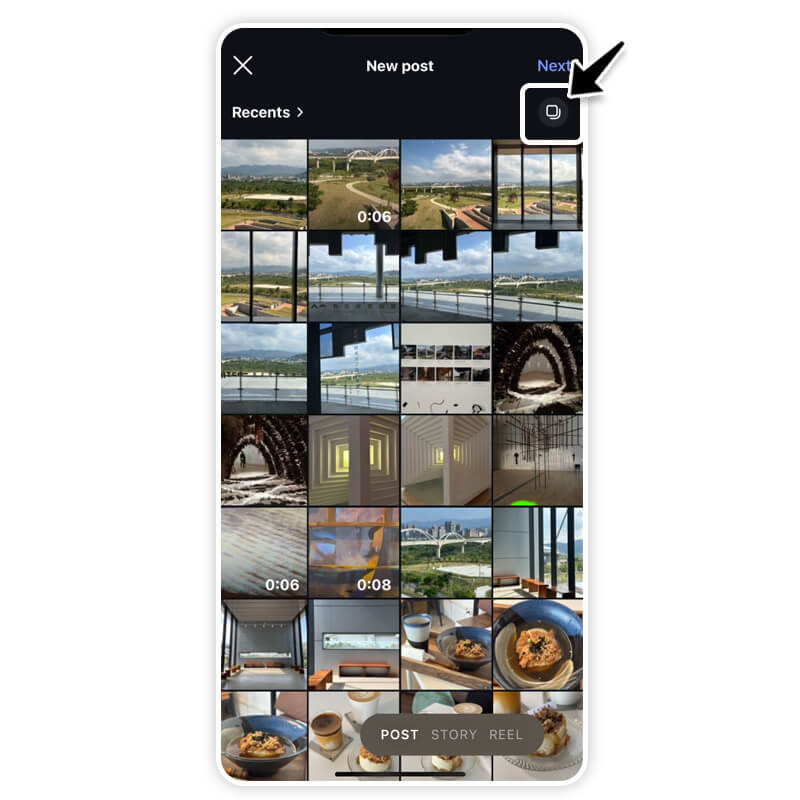
- Click "Post", then select up to 20 photos and videos from your phone.
- Adjust the Crop: Click and hold an image, then drag to adjust how it fits. Important: the orientation (square, portrait, or landscape) you choose for the first image affects all of the photos or videos in your post.
- Filter & Edit: Apply one filter to apply it to *every* photo, or click an individual photo to edit it and add filters individually.
- Add Details: Add one location and caption for your *entire* post. Click on each individual photo to tag someone specific.
- Update / Pro Tip: As you may know, Instagram recently rolled out a new feature allowing users to write individual captions for each photo in a multiple-photo post. If you ever need to save these diverse captions for inspiration or keep your best content backed up, you can easily use a reliable instagram caption downloader.
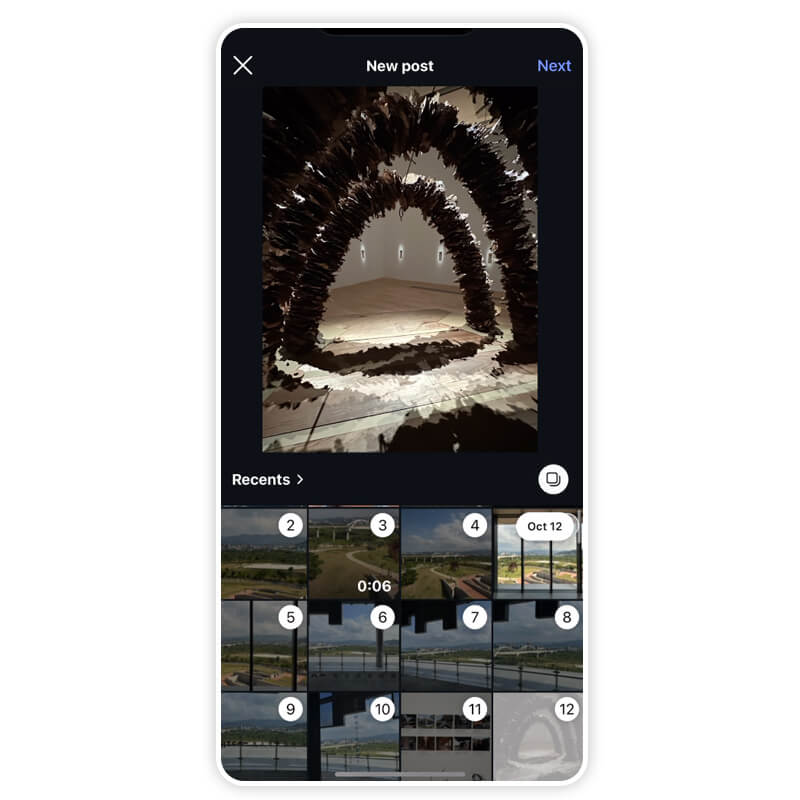
- Click Share.
Best AI Photo Editor
The Best AI Photo Editor & Selfie Camera.
Remove objects, apply filters & more.
How to Add Multiple Photos to Instagram Story
Stories are perfect for real-time updates and more casual content. When asking "how to add multiple pictures to instagram story," you have two fantastic, creative options:
Option 1: Multiple Slides (Up to 10)
This is the fastest method. You can select up to "10 photos and videos" from your camera roll at once. Instagram will automatically upload them as "10 separate slides" for viewers to tap through.
Option 2: Creating a Collage/Layered Story
This allows you to layer several photos on "one" single Story slide:
- Open the Instagram Stories camera.
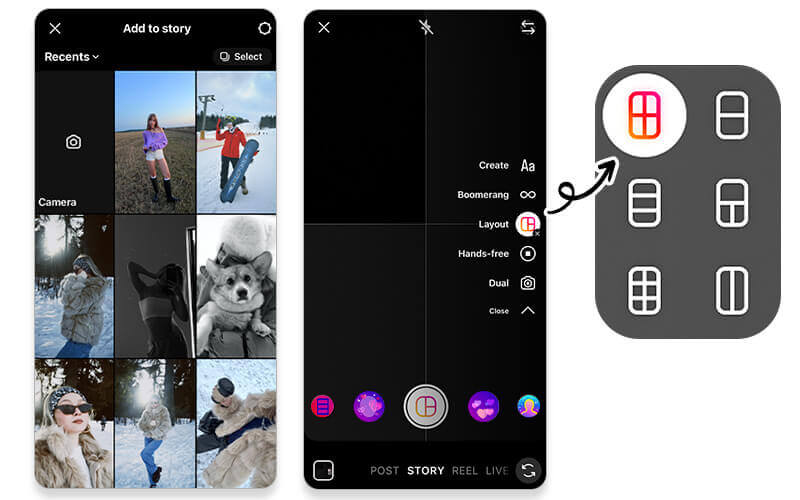
- Tap the "Layout icon" (it looks like a grid) on the left sidebar to create a collage layout (up to 6 photos).
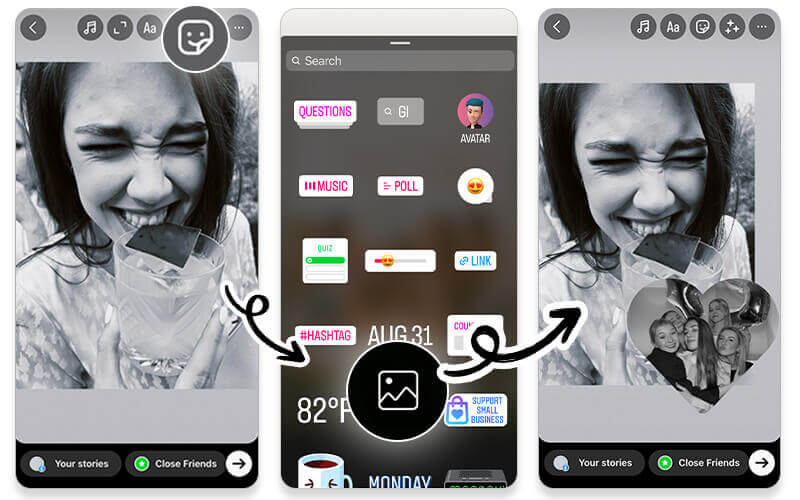
- Alternatively, use the "Sticker tool" (the square smiley face icon), scroll down, and select the "Photo Sticker" icon. Repeat this process to add and layer more photos from your camera roll!
Learn how to post multiple pics on Instagram Story>>>
Pro Tip: How to Post 20+ Photos on Instagram with a Single Swipe
Want to share more than the 20-pic limit allows? The secret is creating a high-impact "Photo Collage" that packs multiple images into one single file! This is where the powerful and free AI-editing app, YouCam Perfect, comes in.
Step 1. Download YouCam Perfect

Best AI Photo Editor
The Best AI Photo Editor & Selfie Camera.
Remove objects, apply filters & more.
Step 2. Tap Collage & Upload Photos
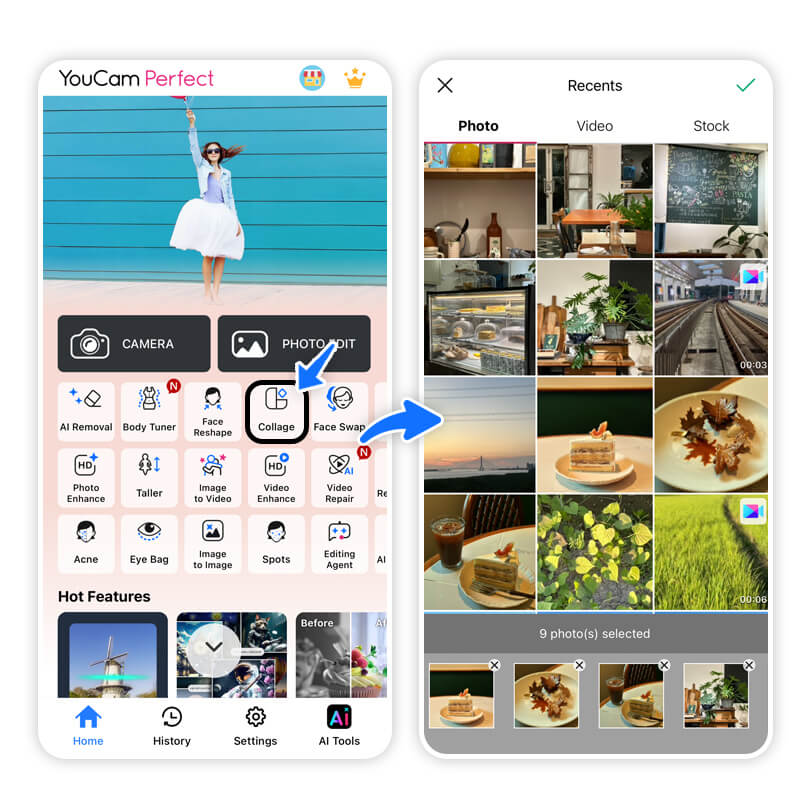
Open the app and select the Collage feature. Upload all the photos you want to include.
Step 3. Select Grid or Poster Designs You Prefer
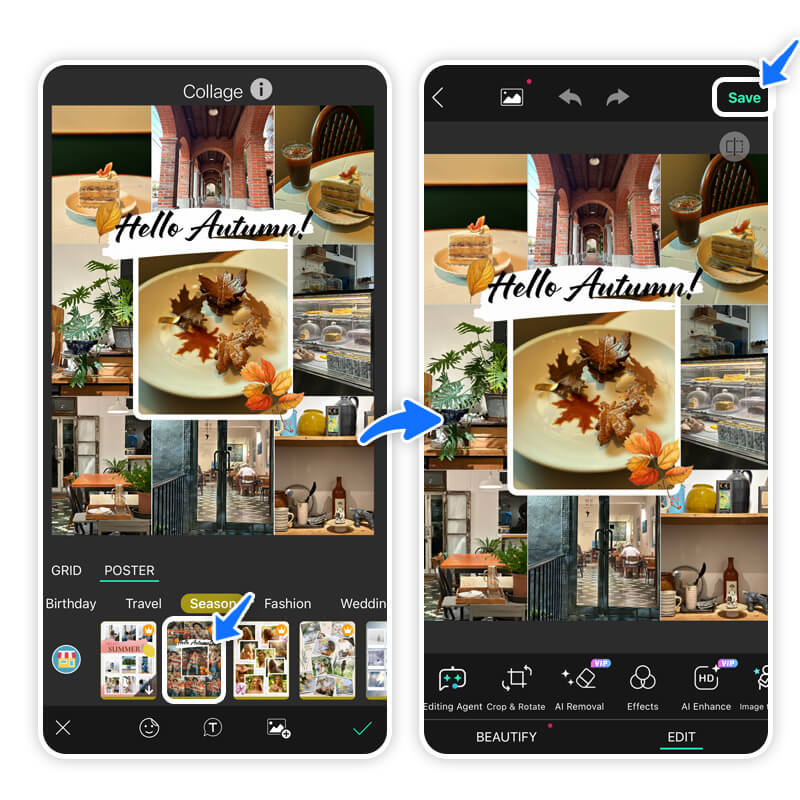
Step 4. Save & Download
Save the single, finished collage image to your camera roll. You can now post this single file as your one "slide" in a carousel or story, effectively sharing dozens of photos in one go!
How many photos can I post on Instagram at once?

You can post up to 20 photos or videos in a single carousel post on your Instagram feed. For Stories, you can upload up to 10 photos or videos at once, which will appear as separate slides.
Can I reorder photos in an Instagram carousel?
Yes. When creating a carousel post, you can tap and hold a photo to drag and reorder it before publishing. This helps you control the storytelling flow of your post.
Can I apply different filters to each photo in a carousel?
Yes. Instagram allows you to apply one filter to all photos or edit each image individually with different filters, brightness, contrast, and more.
Why do carousel posts perform better on Instagram?
Carousel posts often get higher engagement because they:
- Increase time spent on your post
- Get a second chance to appear in feeds if users don’t engage initially
- Encourage saves and shares, which boost visibility in the algorithm
Do Instagram carousels help grow followers?
Yes. High-quality carousel posts can improve reach, saves, and shares, which increases your chances of being discovered by new audiences and gaining followers.



 English


