

Fit Any Frame Without Cropping
Landscape, square or story? Extend the sides of a photo so it fits the frame you need without cutting off your subject.


Need a wider shot or a different aspect ratio? Choose how far to extend and AI fills in the new space to match your photo. Try it in the YouCam Enhance app.

Landscape, square or story? Extend the sides of a photo so it fits the frame you need without cutting off your subject.
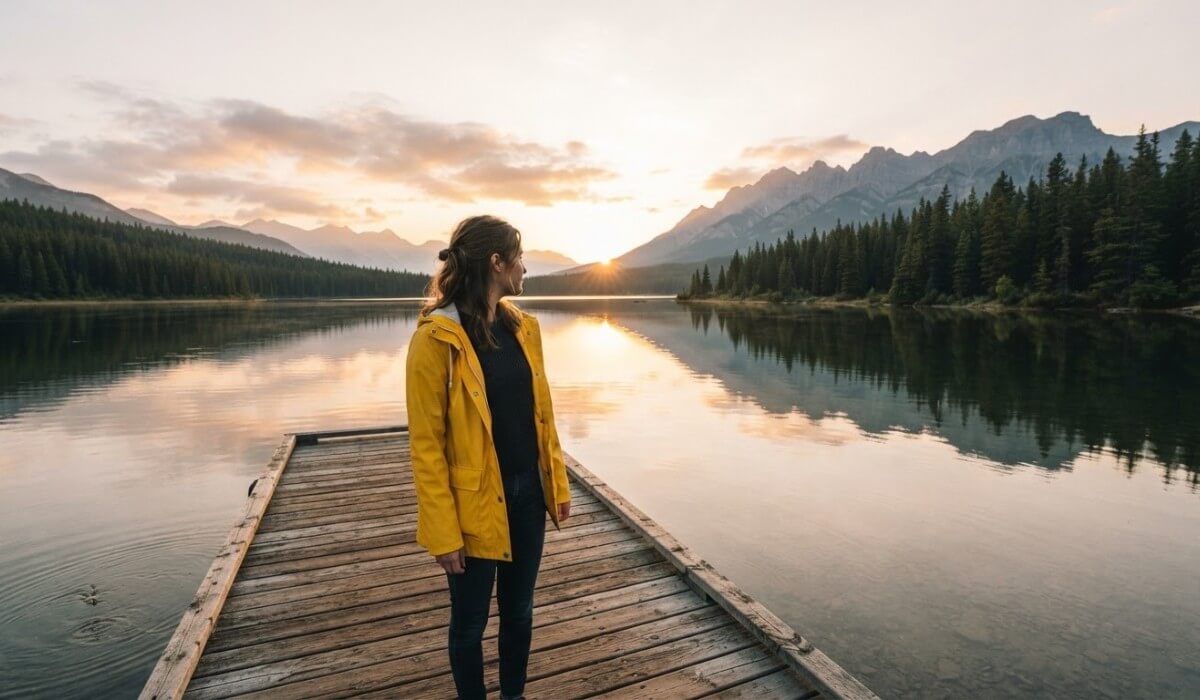
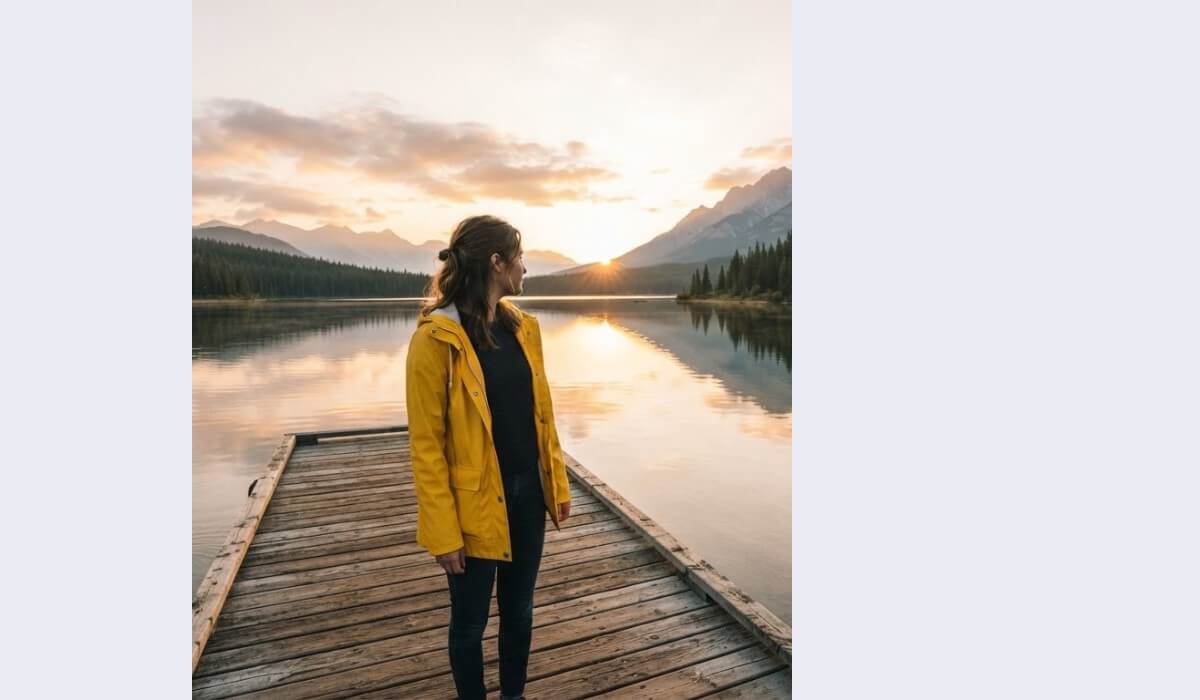

A tight crop can feel cramped. Extend the scene so there is space around the person, with the new area following the light and colors already in your photo.


Add more sky, fields or sea around a favorite view. Results depend on the original photo, and simple scenes such as sky, water and grass extend most smoothly.
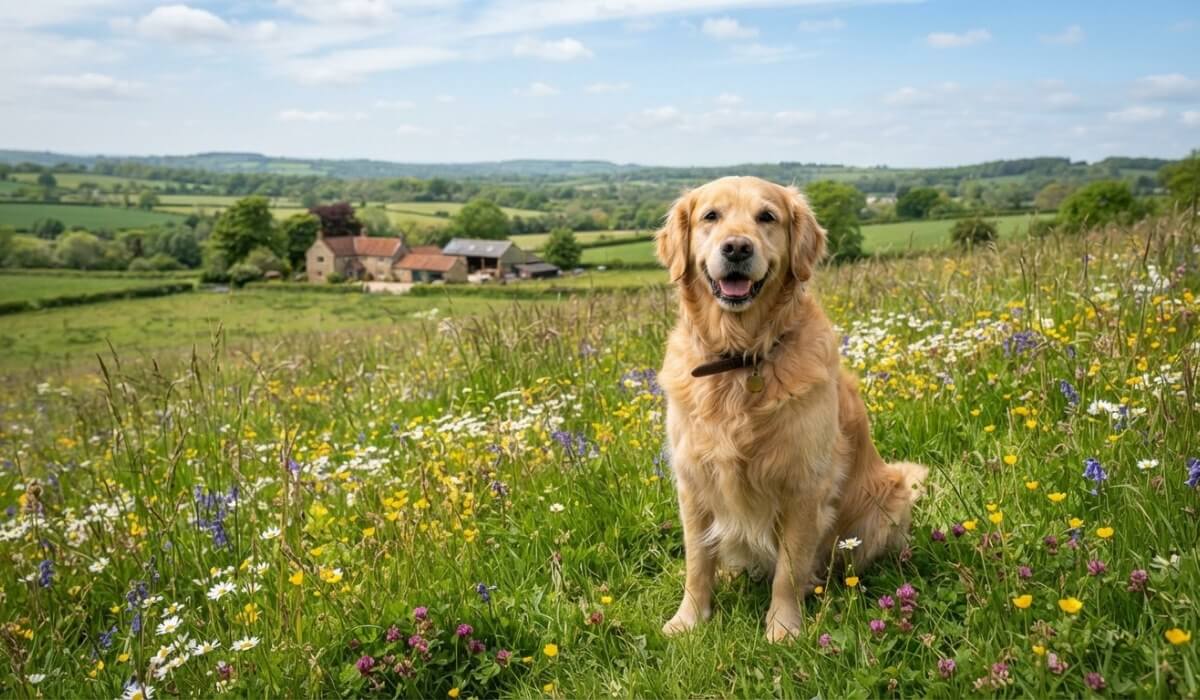
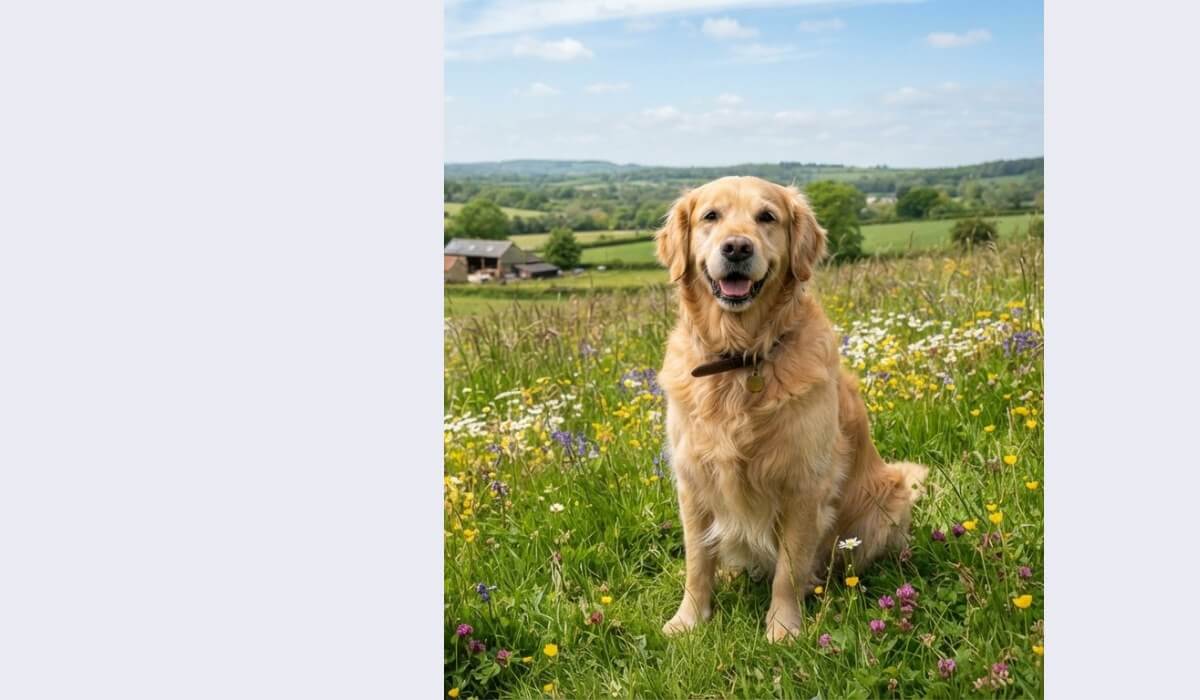
Start with a photo where the person or object sits near the middle. That leaves room on every side, so the AI has more context to continue the scene.
Skies, water, walls and grass extend more smoothly than busy scenes. If your photo is cluttered, extend a small amount at a time.
Blurry or very small photos give the AI less detail to match. Improve the photo first with an AI photo enhancer, then extend it.
AI Image Extender in YouCam Enhance
YouCam Enhance brings AI photo tools together, so you can extend a photo and improve its quality in one place.
Extend photos to a new ratio, enhance image quality and restore detail with AI.

An AI image extender adds new content around the edges of a photo. It studies what is already in the picture and fills the extra space with matching sky, ground, background or scenery.
Yes. Instead of cutting parts of the photo away, you can extend it so it fits a new ratio such as landscape, square or portrait while keeping your subject in full.
The new area is generated, so it may not match every detail. Simple backgrounds blend best, and smaller extensions look more natural than very large ones. If it looks off, try again with a different size.
It works best when the person is fully in the frame and not cut off at the edges. If part of a body or face is already cropped, the extension has less to build on and may look less accurate.
The aim is to keep your original photo as it is and only add new content around it. Compare the result with the original before you share it.
Start with a sharp photo, keep the subject near the middle, choose a simple background and extend in small steps. If the photo is blurry, enhance it first.




 English