



 Author:
Upload a character image and a reference video, and YouCam Online Editor's newest AI Video tool animates it in minutes — no filming, rigging, or animation skills required.
AI Character Motion Swap
Turn any photo into motion, or swap your character into any video scene.
Pick a model, add a reference clip, and let AI handle the animation.
Animating a photo, or dropping a character into an existing video clip, used to mean hiring an animator, learning rigging software, or settling for whatever a fully-automated AI video generator decided to do with your prompt — none of which gives you real control over the motion itself.
YouCam Online Editor's new Character Motion Swap flips that. Upload any character image and a short reference video, and the AI transfers that video's exact motion onto your character — or drops your character straight into the scene, matching the original camera work and choreography.
Key Takeaways
- 🎯 Motion transfer, not motion guessing — your character copies real movement from a reference clip you choose, not a randomized AI animation.
- 🎭 Works beyond human faces — illustrated characters, AI-generated figures, and mascots can be animated, not just photos of real people.
- 🧠 Four AI models to choose from — Runway Act-2 and Wan 2.2 Animate Move keep your photo's original background, Kling Motion Control keeps the reference video's background, and Kling O1 adds a text prompt for custom edits.
- 🎬 No reference clip on hand? Switch to the Template tab and apply a ready-made motion instantly.
- 📱 Everywhere you edit — available on desktop, the mobile app, and mobile browser.
How Character Motion Swap works
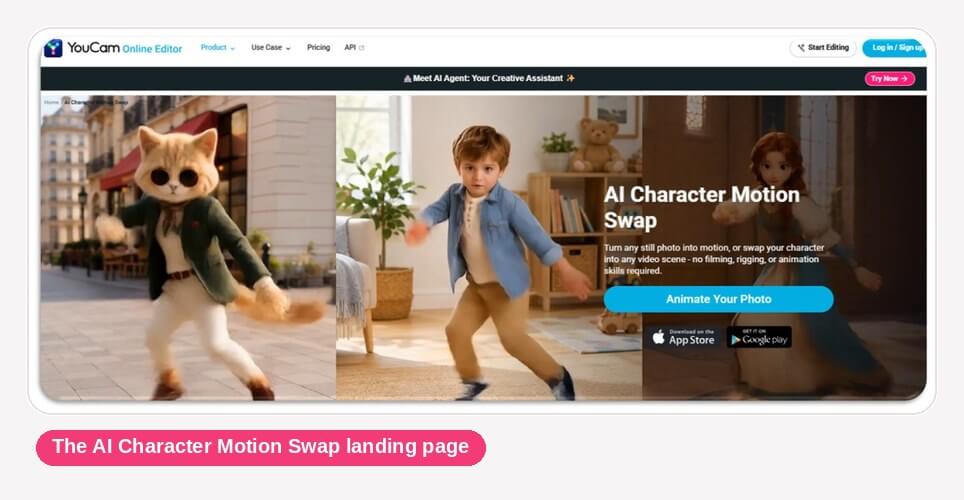
- Open Character Motion Swap from the AI Video category in YouCam Online Editor's lobby, or click "Animate Your Photo" on the feature page.
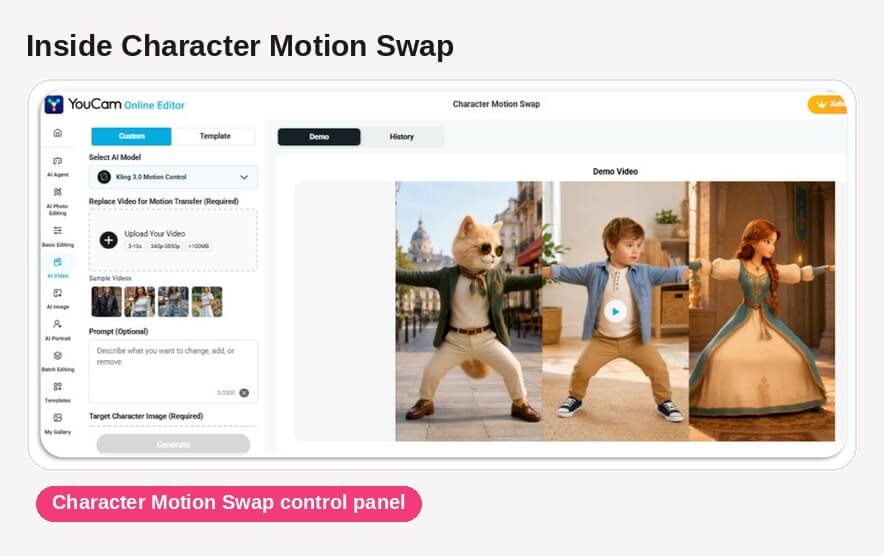
- Choose an AI model: Kling Motion Control for precise motion that keeps your reference video's own background, Kling O1 to direct the result with a written prompt, or Wan 2.2 Animate Move / Runway Act-2 to apply that motion onto your original photo's background instead.
- Upload your motion reference video — clips run 3 to 10 seconds, up to 100MB — or pick one of the built-in sample videos.
- Upload the character image you want animated. Runway Act-2 and Wan 2.2 Animate Move need one clear, front-facing face in the photo; the Kling-based models also accept illustrated or AI-generated characters with no face at all.
- (Kling O1 only) Add an optional text prompt describing what to change, or leave it blank to use the default.
- Hit Generate. The app switches you to the History tab so you can track progress and keep working while it renders.
- Open the finished video, download it, or try a different model or character against the same reference clip.
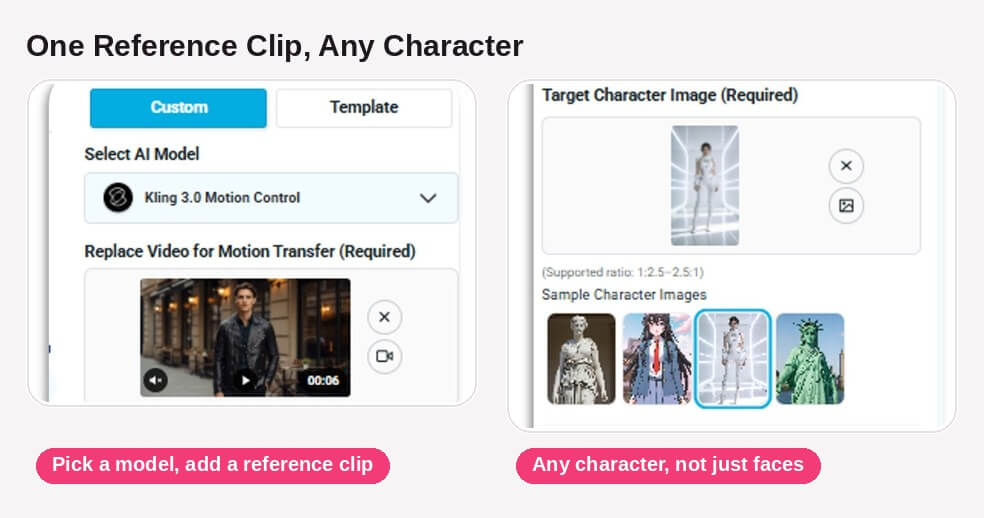
One reference clip, any character
Character Motion Swap runs on four different AI models, each suited to a different kind of result. Runway Act-2 and Wan 2.2 Animate Move apply your reference video's motion onto your original photo, keeping its background intact — good for a portrait you want to bring to life without changing the setting. Kling Motion Control does the opposite: it keeps the reference video's own background and camera movement, and places your character inside it — good for swapping yourself or a character into an existing scene. Kling O1 works the same way but adds a required text prompt and aspect ratio control, so you can direct exactly what changes.
The character image itself doesn't have to be a photo of a person. YouCam's own sample characters include a marble statue, an anime-style illustration, a glowing AI-generated figure, and the Statue of Liberty — all valid inputs for the Kling-based models, which don't require face detection the way Runway Act-2 and Wan 2.2 Animate Move do.
No reference video? Start from a template
Not everyone has a reference clip ready to go. The Template tab swaps the custom workflow for a library of ready-made motions — pick one, and the app fills in a matching sample video and character image automatically. It's the faster path when you just want to see a character move without sourcing your own footage first.
Built-in guidance for a better first try
The first time you upload a video or photo, Character Motion Swap shows a short guide on what makes a good input: a clear, front-facing, well-lit face in focus for face-based models, and footage to avoid — side profiles, small or obstructed faces, low quality, or non-human subjects where a face is required. It's a small touch, but it heads off the most common reason a first generation doesn't turn out the way you expected.
See it in action
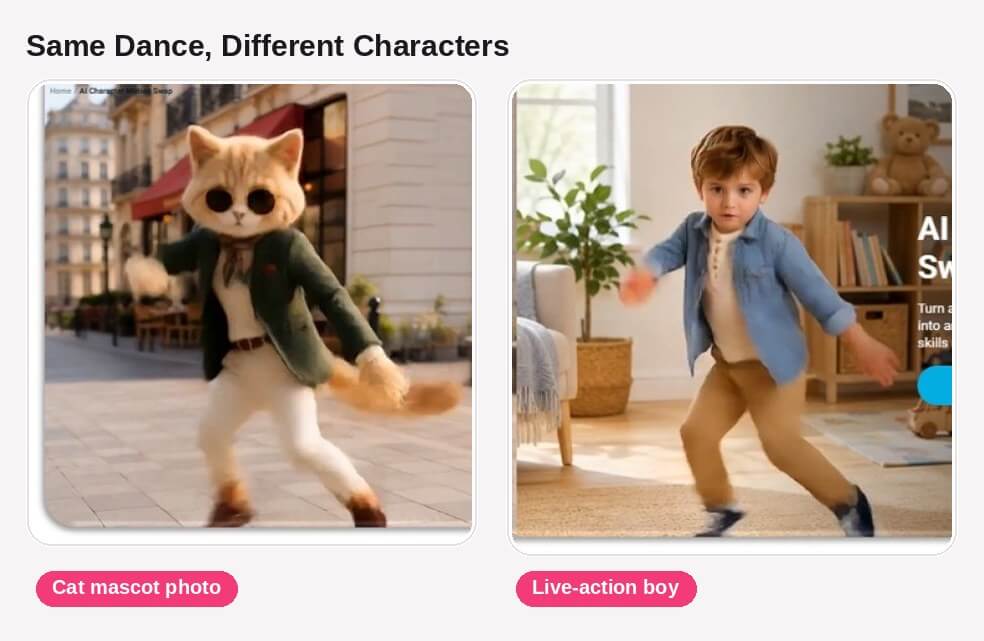
YouCam's own demo runs the same street-dance reference clip through two very different characters — a cat mascot and a live-action photo of a boy — and both pick up the identical choreography, down to the arm swing and footwork.
AI Character Motion Swap
Turn any photo into motion, or swap your character into any video scene.
Pick a model, add a reference clip, and let AI handle the animation.
Why try before you commit
- No animation skills needed. The AI handles rigging and motion transfer — you just pick a model, a clip, and a character.
- You choose the trade-off. Keep your photo's background, keep the video's background, or direct a custom result with a prompt — the model choice is yours.
- Not limited to real people. Statues, illustrations, and AI-generated characters animate the same way a portrait does.
Try it now
Pick a reference clip, upload a character, and let Character Motion Swap do the rest.
AI Character Motion Swap
Turn any photo into motion, or swap your character into any video scene.
Pick a model, add a reference clip, and let AI handle the animation.
FAQ
What video and file limits apply to the reference clip?
Motion reference videos run 3 to 10 seconds and up to 100MB; supported resolution ranges from 340p up to 3850p depending on the model selected.
Does my character image need a face?
Only for Runway Act-2 and Wan 2.2 Animate Move, which require one clear, single face. Kling Motion Control and Kling O1 accept illustrated or AI-generated characters with no face at all.
What's the actual difference between the four AI models?
Runway Act-2 and Wan 2.2 Animate Move apply the reference video's motion to your photo and keep your photo's background. Kling Motion Control keeps the reference video's background and camera work instead. Kling O1 works like Kling Motion Control but adds a required text prompt and aspect ratio setting for custom direction.
Is Character Motion Swap free to use?
YouCam Online Editor includes a limited number of free generations; higher-resolution exports and some AI models require a paid plan.
Do I need my own reference video?
No — switch to the Template tab to apply a ready-made motion without sourcing your own clip.
Does this work on mobile?
Yes. Character Motion Swap is available on desktop, in the YouCam mobile app, and in mobile browsers.



 English


