


 Author: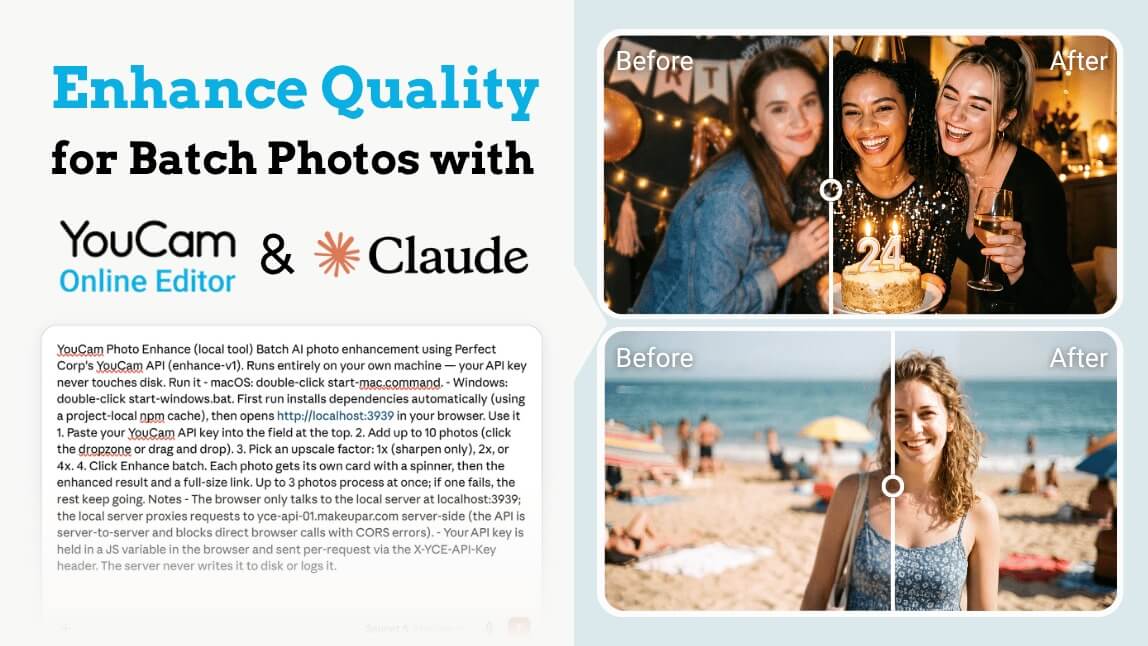
You've got 30 photos. Maybe 100. Product shots, event pics, old client assets — all a little soft, a little grainy, a little "shot on a phone in 2019." Fixing them one by one in an editor? That's an afternoon you're never getting back.
Here's the good news: with the YouCam AI photo enhancer API and Claude, you can build your own batch photo enhancer in about five minutes. No coding. No downloads from sketchy websites. Just one prompt, one free API key, and a drag-and-drop tool that runs right on your own computer.
Let's walk through it. Three steps. Seriously, that's it.
What You'll Need Before You Start
- Claude Cowork — Anthropic's agentic workspace app. This is where the magic gets built.
- A YouCam API key — free to grab, and it comes with 40 free credits so you can start enhancing immediately. Get API key & 40 free units here>
- Some blurry photos — you definitely have these. We all do.
That's the whole shopping list. Now let's build.
Step 1: Ask Claude to Build Your Batch Photo Enhancer
Open Claude Cowork and paste in the prompt below. Claude will build a small local tool on your machine — a simple web page where you can drop in photos and enhance them in bulk using YouCam's AI engine.
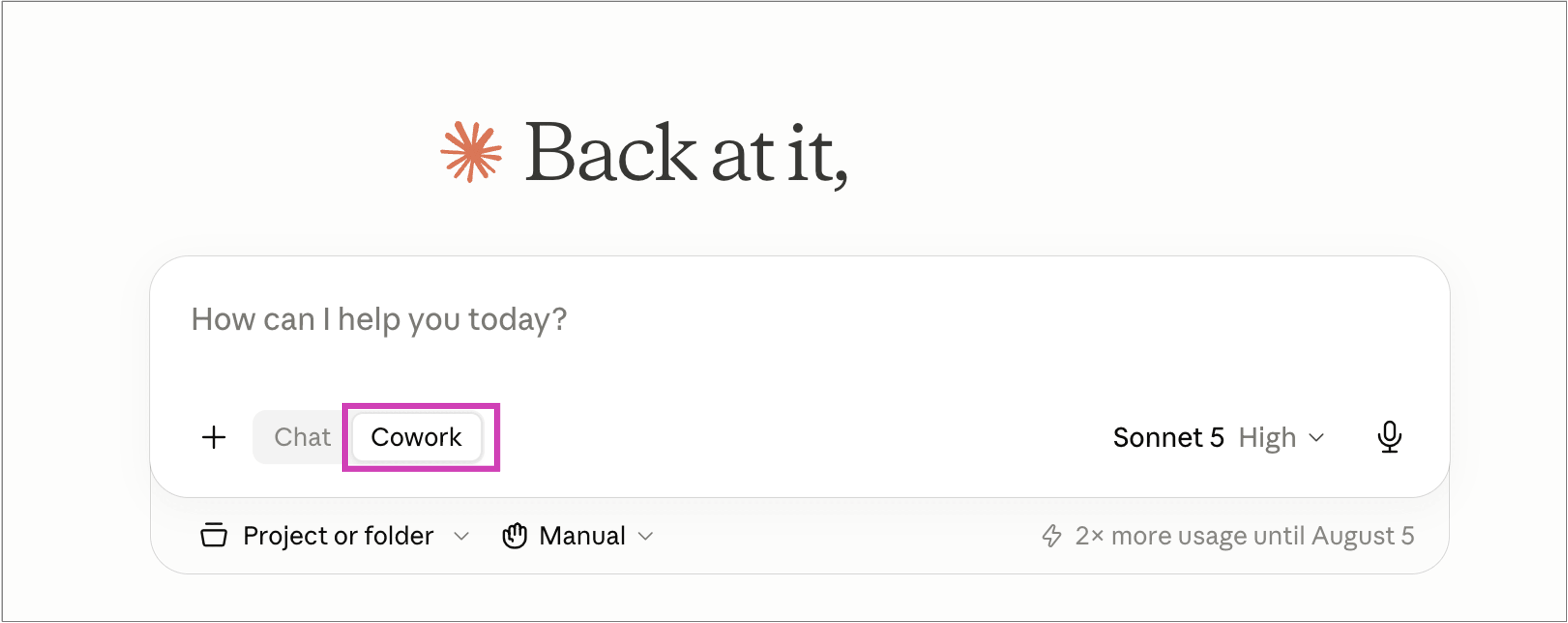
Here's the prompt — copy the whole thing:
YouCam Photo Enhance (local tool) Batch AI photo enhancement using Perfect Corp's YouCam API (enhance-v1). Runs entirely on your own machine — your API key never touches disk. Run it - macOS: double-click start-mac.command. - Windows: double-click start-windows.bat. First run installs dependencies automatically (using a project-local npm cache), then opens http://localhost:3939 in your browser. Use it 1. Paste your YouCam API key into the field at the top. 2. Add up to 10 photos (click the dropzone or drag and drop). 3. Pick an upscale factor: 1x (sharpen only), 2x, or 4x. 4. Click Enhance batch. Each photo gets its own card with a spinner, then the enhanced result and a full-size link. Up to 3 photos process at once; if one fails, the rest keep going. Notes - The browser only talks to the local server at localhost:3939; the local server proxies requests to yce-api-01.makeupar.com server-side (the API is server-to-server and blocks direct browser calls with CORS errors). - Your API key is held in a JS variable in the browser and sent per-request via the X-YCE-API-Key header. The server never writes it to disk or logs it.
Hit enter, grab a coffee (a short one — this is fast), and Claude will hand you back a ready-to-run tool.
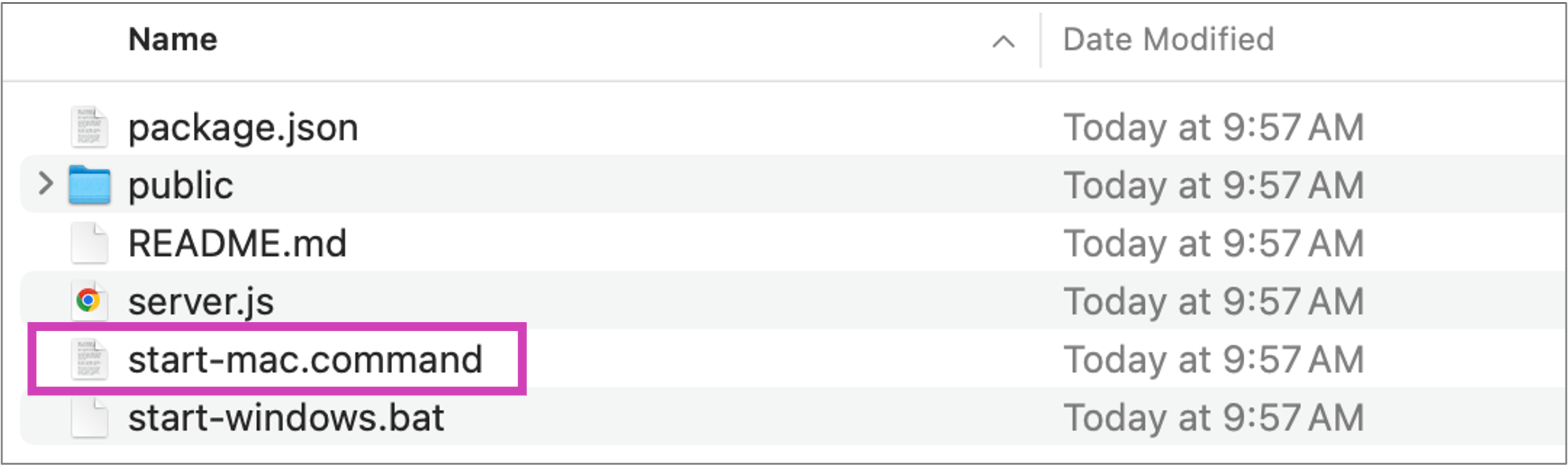
Double-click start-mac.command on Mac or start-windows.bat on Windows, and a clean little enhancer opens at localhost:3939 in your browser.
If you plan to expose this local environment to remote collaborators, configuring browser secure tunneling will keep your connections entirely private.
Step 2: Grab Your Free YouCam API Key (and 40 Free Credits)
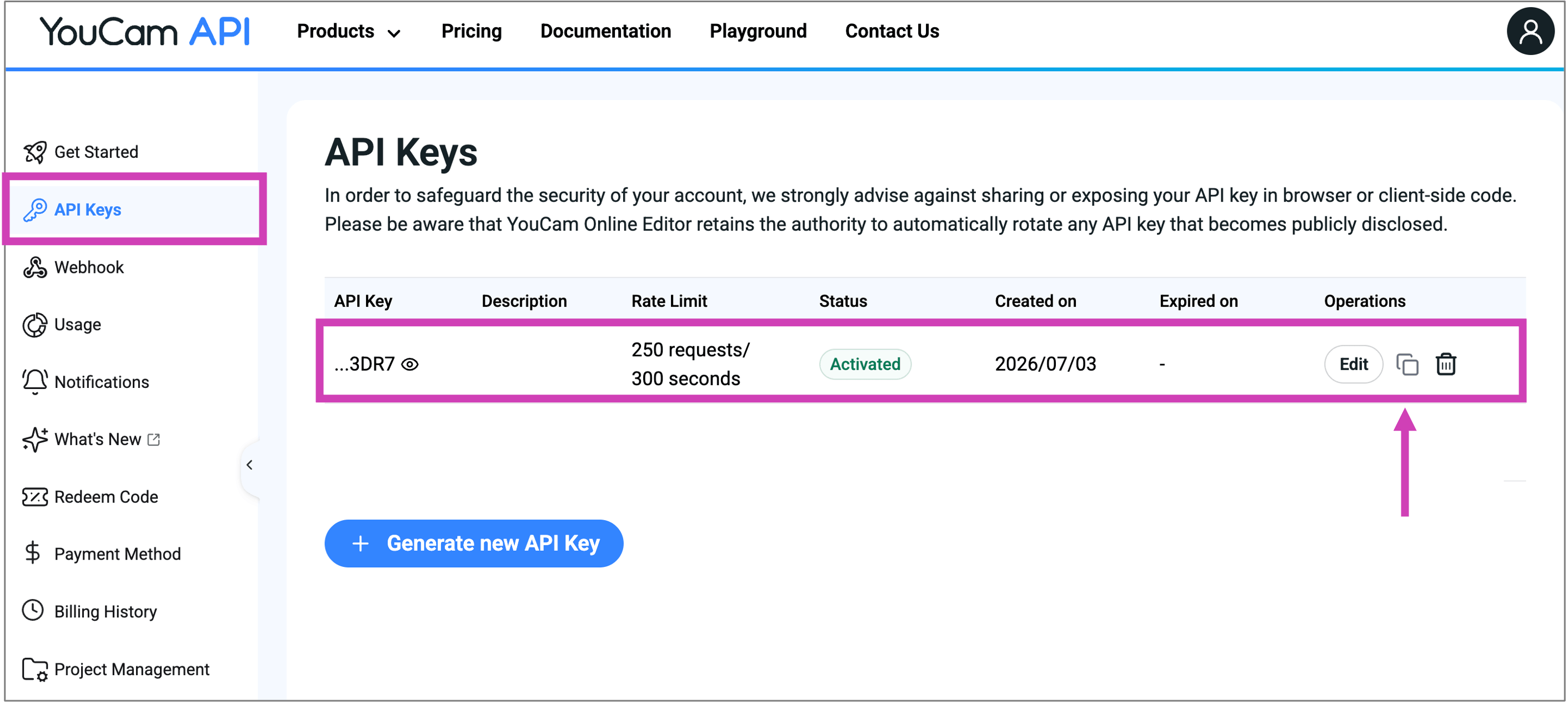
The tool needs one thing to work: a YouCam API key. Head over to the YouCam AI API page, sign up, and you'll get 40 free credits the moment you register. No credit card gymnastics required.
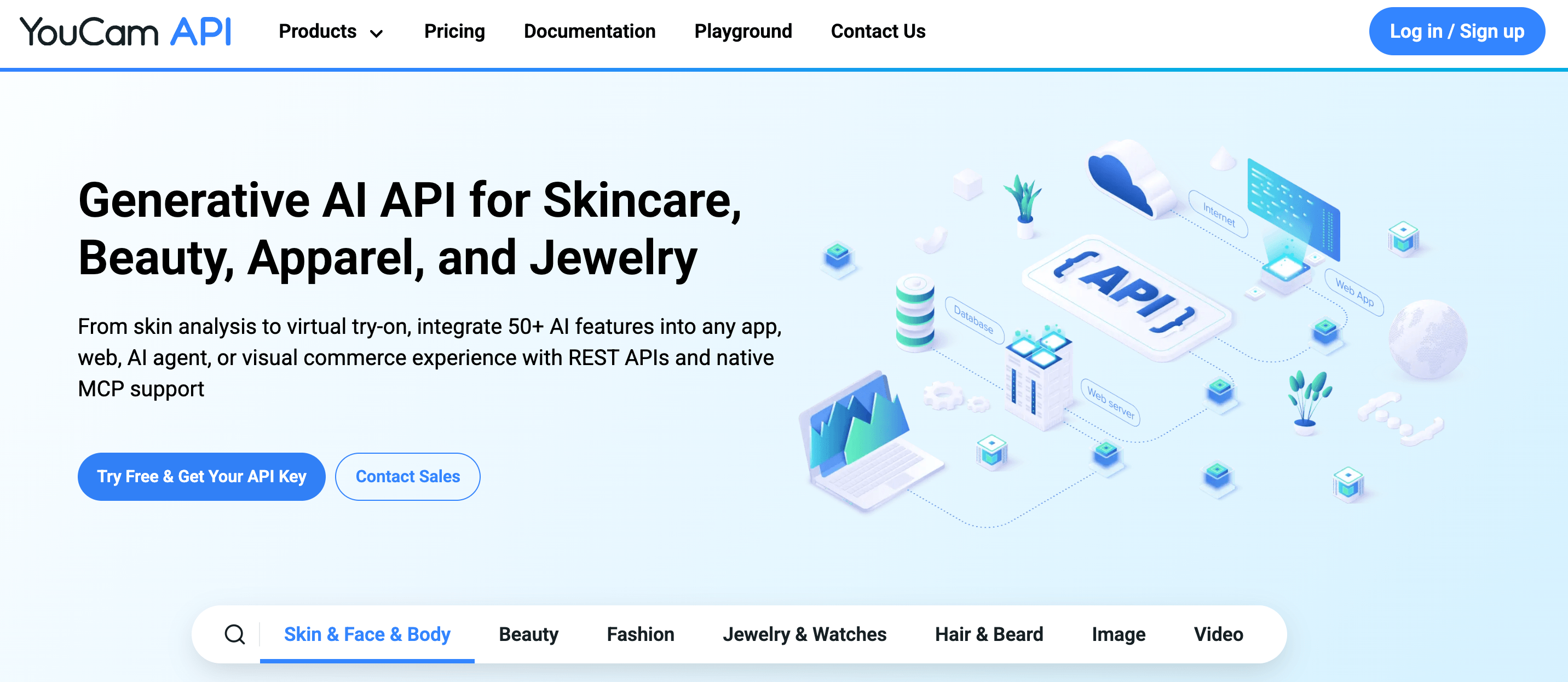
Once you're in, copy your API key from the dashboard. That's your golden ticket — and here's the nice part: the tool Claude built never saves it anywhere. It lives in your browser session only, so your key stays yours.
Step 3: Drag, Drop, Enhance
Back in your shiny new local tool:
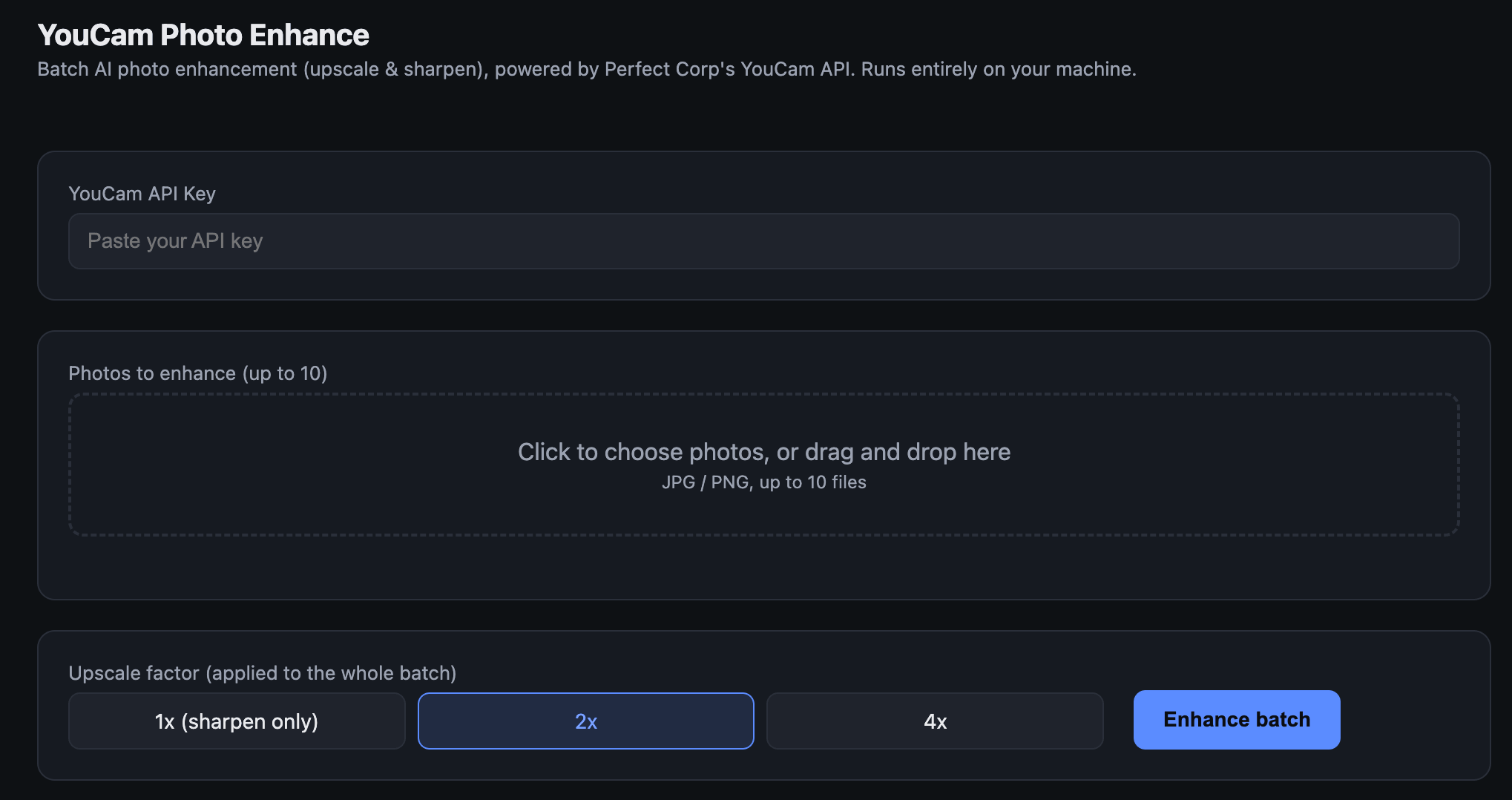
- Paste your API key into the field at the top.
- Add up to 10 photos — click the dropzone or just drag them in.
- Pick your upscale factor: 1x if you just want sharpening, 2x or 4x if you want more pixels too.
- Click "Enhance batch" and watch each photo get its own card, its own spinner, and — a few seconds later — its own crisp, enhanced result with a full-size download link.
That's the whole workflow. Blurry batch in, HD batch out. The AI handles sharpening, detail reconstruction, and upscaling — the same enhance-v1 engine behind YouCam's photo enhancement tools that creators and businesses use every day.
Want to see what else the YouCam engine can do in the wild? Browse the Perfect Corp. showcase for real examples.
Why Is This Better Than Enhancing Photos One by One?
| The old way | The YouCam + Claude way |
|---|---|
| Open editor, fix, export. Repeat x50. | Drag in a batch, click once, done. |
| Upload photos to random web tools | Runs locally on your own machine |
| Results vary photo to photo | Consistent AI enhancement across the whole set |
| Paid software or subscriptions upfront | 40 free credits to start, pay as you scale |
And because it's built on the YouCam API, this same engine can go anywhere — into your app, your e-commerce pipeline, your internal tools.
Today it's a drag-and-drop enhancer on your desktop. Tomorrow it could be a feature in your product.
Ready to try it? Sign up for the YouCam AI API, claim your 40 free credits, and have your batch enhancer running before your coffee gets cold.
FAQ: YouCam AI Photo Enhancer + Claude
Is the YouCam AI photo enhancer API free to try?
Yes — signing up gets you 40 free credits right away, enough to enhance a solid batch of photos and see the quality for yourself. After that, you pay only for what you use.
How many photos can I enhance at once?
The tool accepts up to 10 photos per batch, and processes up to 3 at a time. If one photo fails, the rest keep going — no babysitting required.
Do I need to know how to code?
Nope. Claude Cowork builds the entire tool from the prompt above. Your job is copy, paste, and drag-and-drop. If you can code, the YouCam API also plugs straight into your own apps and workflows.
Is my API key safe?
Yes. The tool runs entirely on your own machine. Your key lives in a browser variable, gets sent per-request via a secure header, and is never written to disk or logged.
What does the upscale factor do?
1x sharpens and enhances at the original resolution. 2x and 4x rebuild detail while enlarging the image — great for turning small, soft images into print-ready or retina-ready assets.
What if something doesn't work?
We've got you. Contact the Perfect Corp team and we'll help you get up and running.



 English


